Click on the button to watch a video on this issue
A downloadable PDF Troubleshooting Card
is available in the description of the video
Issue
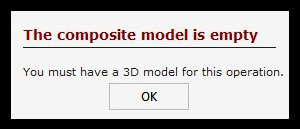
The Composite Model Is Empty error appears when creating a roughing or finishing toolpath.
What This Means
Vectric cannot find a model to machine because no component or model is present in the 2D or 3D View.
What to Check
- Confirm that a component or 3D model has been created or imported
- Make sure the model is visible in the 2D and/or 3D View
- Verify the model is included in the Composite Model
- Check that components are enabled and not hidden or suppressed
How to Fix
- Create or import a 3D component before generating the toolpath
- Rebuild or recalculate the Composite Model
- Adjust the model’s position and height so it exists within the material thickness
- Ensure the correct components are selected for the composite
Tip
If nothing appears in the 3D View, the Composite Model is empty—and roughing or finishing toolpaths cannot be created until a model exists.