Click on the button to watch a video on this issue
A downloadable PDF Troubleshooting Card
is available in the description of video
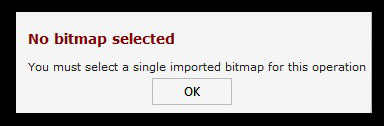
No Bitmap Selected
Issue
The No Bitmap Selected error appears when using the Laser Picture or Photo V-Carve tools.
What This Means
An image must be imported and actively selected for the operation to work. The tool cannot proceed without a valid bitmap.
What to Check
- Confirm that an image has been imported into the project
- Make sure the imported image is selected in the workspace
- Check that the file format is supported (e.g., JPG, PNG, BMP)
How to Fix
- Import a valid image if none exists
- Click to select the imported image before running the toolpath
- Re-attempt the operation
Tip
Always verify your image is selected—having it in the project alone is not enough for Laser Picture or Photo V-Carve operations.