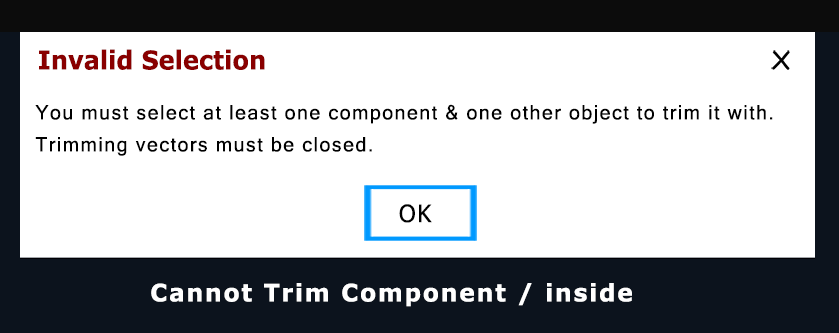
The “cannot trim component inside” message appears when the selected boundary vector does not intersect the 3D component you are trying to trim. The Clear Component Inside Selected Vectors tool requires the vector to overlap the component to remove parts that extend beyond it.
Common Causes and Fixes
- No Intersection: The vector doesn’t cross or contain any part of the 3D component.
Fix: Move or resize the vector in the 2D view so it overlaps the component. - Vector Issues: The vector may be open, overlapping itself, or have zero-length spans.
Fix: Use the Vector Validator tool to check and repair errors. - Layer/Group Issues: The component and vector may be on different layers or grouped differently.
Fix: Ensure both are visible and editable; ungroup components (Right-click → Ungroup or U) if needed. - Component is “Baked”: Previously merged components cannot be trimmed individually.
Fix: Work with the original, non-baked components or use alternative cropping methods.
How to Use the Tool Successfully
- Select the 3D component(s) to trim.
- Hold Shift and select the closed 2D vector boundary.
- Apply Clear Component Inside Selected Vectors.