Click on the button to watch a video on this issue
A downloadable PDF Troubleshooting Card
is available in the description of the video
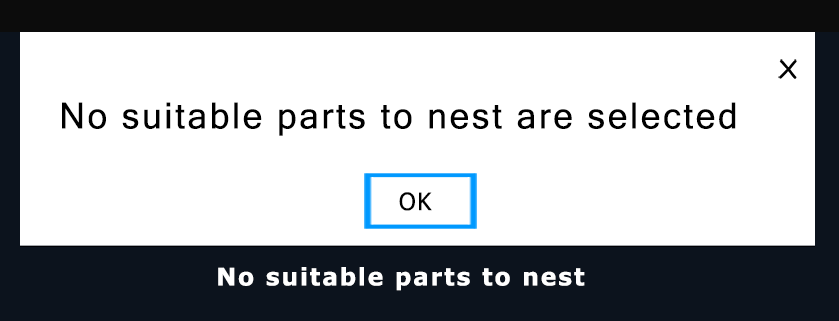
The message “No suitable parts to nest are selected” in Vectric means the software cannot find valid shapes (vectors) to nest. This usually occurs when no vectors are selected, selected vectors are invalid, too large for the material, or have geometry issues.
Common Causes & Solutions
- Nothing Selected
Problem: No vectors chosen for nesting.
Solution: Select all shapes to nest in the 2D view before running the tool. - Invalid Vector Geometry
Problem: Vectors are open, overlapping, or have zero-length spans.
Solution: Use Vector Validator to fix open paths, overlaps, or other geometry issues. - Parts Too Large / Settings Conflict
Problem: Parts exceed sheet size, or clearance/tool diameter settings leave insufficient space.
Solution: Check sheet size, reduce gaps or clearances, and consider rotation or mirroring options. - Incorrect Part Definition
Problem: Large vectors containing smaller items may be treated as a single complex part.
Solution: Ensure each item is a distinct, closed vector; use grouping/ungrouping as needed.
Tip: The software requires clearly defined, closed shapes that can fit within the material area based on your nesting settings.