Click on the button to watch a video on this issue
A downloadable PDF Troubleshooting Card
is available in the description of the video
Emboss Tool Results
Issue
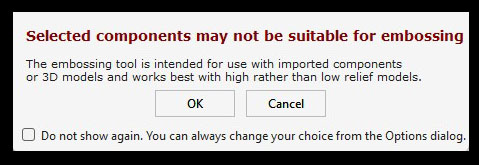
The Emboss Tool produces unexpected or poor results on certain models.
What This Means
- The tool is designed for full 3D, high-relief models
- Low-relief models, such as Aspire-created shapes or imported clipart, may not emboss well
- Using the tool on unsuitable models can result in distorted or weak embossing
What to Check
- Confirm the model is high-relief 3D rather than low-relief or flat
- Ensure the imported data is compatible with Emboss Tool requirements
How to Fix
- Use the Emboss Tool primarily on full 3D, high-relief models
- For low-relief designs, consider other modeling or carving methods
- Test on a small area before applying to the full model
Tip
For best results, save the Emboss Tool for high-relief imported 3D data—this ensures crisp, clean, and accurate embossing.