Click on the button to watch a video on this issue
A downloadable PDF Troubleshooting Card
is available in the description of the video
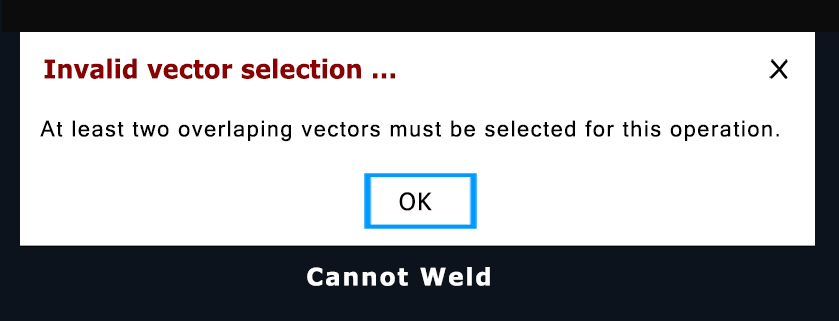
In Vectric software, a “Cannot Weld” message generally means that the selected vectors have issues preventing them from being merged into a single, continuous, closed shape. The Weld tool is designed to combine overlapping, closed vectors—such as letters in a script font—while keeping only the outer perimeter.
Common reasons for this message or for the Weld function being grayed out include:
- Only one vector selected: Welding requires at least two overlapping vectors.
- Open vectors: The tool works with closed shapes. Vectors with gaps between start and end points cannot be welded because the software cannot determine the inside and outside edges.
- Vector errors: Problems such as duplicate lines, zero-length spans (nodes stacked on top of each other), or complex intersections can prevent welding.
- Incorrect selection order or grouping: Grouped objects or certain selection orders may interfere with welding. Ungrouping text or other objects may be necessary.
How to fix it:
- Use the Vector Validator: Found under the Edit Objects menu, the validator highlights issues like open vectors, overlaps, and zero-length spans.
- Join open vectors: Use the “Join Open Vectors” tool to automatically close small gaps between endpoints within a set tolerance.
- Manually fix errors: For complex overlaps or intersections, use Node Editing, the Trim tool, or delete duplicate vectors and extra points to create clean, closed shapes.
- Re-select and weld: Once the vectors are cleaned and properly overlapping, select all relevant shapes and apply the Weld command again.