Click on the button to watch a video on this issue
A downloadable PDF Troubleshooting Card
is available in the description of the video
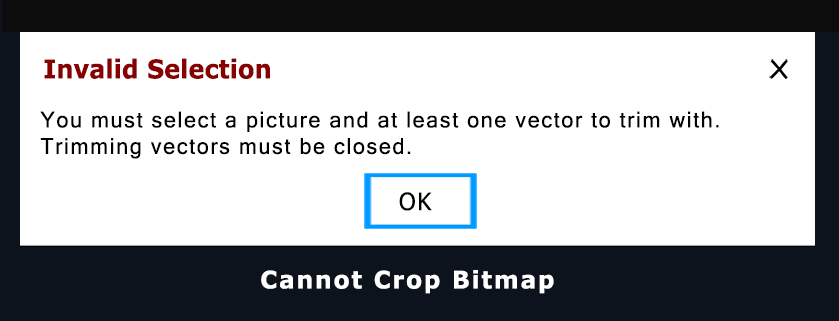
The message “Cannot Crop Bitmap” in Vectric software (Aspire, VCarve, Cut2D) appears when the Crop Bitmap tool cannot be used because the necessary conditions aren’t met. The tool requires:
- One or more closed vectors defining the area you want to keep.
- A single bitmap image to crop.
Common reasons for the error include:
- Open or missing vectors (the shape must be fully closed)
- No bitmap selected or multiple bitmaps selected
- Incorrect selection order (Shift + select bitmap and vector)
- Attempting to crop a 3D component (use the Level Clipping tool in the Modeling tab instead)
How to use the Crop Bitmap tool correctly:
- Draw a closed vector around the area of the image you want to keep.
- Select the bitmap image.
- Hold Shift and click the vector(s) to add them to your selection.
- Go to the Drawing tab, then click Crop Bitmap.
This will permanently remove everything outside the closed vector boundary from your image.