Click on the button to watch a video on this issue
A downloadable PDF Troubleshooting Card
is available in the description of the video
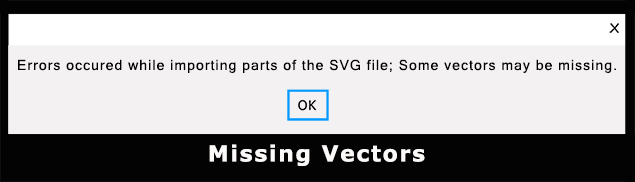
Error: Vectric fails to load some elements from your SVG file.
Cause:
This happens when the SVG contains non-vector elements (like embedded images or photos) or uses complex features (masks, filters, symbols, gradients) that Vectric cannot fully interpret. As a result, only the basic lines and shapes are imported, and some details or complex graphics are lost. Essentially, the file isn’t pure vector data, so some “vectors” aren’t recognized.
Common Causes & Solutions:
- Embedded Images (Raster Data):
- Cause: The SVG contains JPG/PNG images.
- Solution: Open the SVG in a vector editor (Inkscape, Illustrator). Separate or convert images to paths/vectors, then re-save as a clean SVG.
- Unsupported Features:
- Cause: Masks, filters, clipping paths, or complex gradients.
- Solution: Simplify elements in the original editor. Convert masks to solid shapes, flatten gradients, and expand effects into basic paths before exporting.
- Software Compatibility:
- Cause: Different programs export SVG code differently.
- Solution: Open and re-export the SVG in a robust vector editor (like Inkscape) to standardize the file.
- Duplicate or Corrupt Paths:
- Cause: Extra invisible or overlapping paths.
- Solution: Use your vector editor’s “Delete Duplicates” or path-cleanup tools before saving.
Summary:
Always re-save the SVG from a full-featured vector editor, ensuring it contains only simple paths, strokes, and fills—no embedded photos or complex effects. This ensures Vectric can import the file correctly.