Click on the button to watch a video on this issue
A downloadable PDF Troubleshooting Card
is available in the description of the video
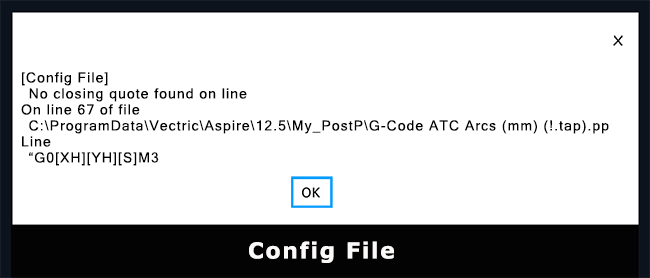
A “no closing quote” error happens when the program encounters an opening quotation mark (“) or apostrophe (‘) but doesn’t find its matching closing mark before the line ends or before the parser expects it. This creates a syntax problem because the software can’t determine where the string ends.
In the context of a post-processor, this usually occurs in scenarios like:
- G-code templates:
- If the post-processor has a line like:
- MOVE X=”100 Y=200
The parser expects a closing ” after 100, but it’s missing.
- Scripted commands or expressions:
- Some post-processors allow expressions or embedded code (like VBScript, Python, or Lua). An unclosed string in these scripts will throw this error.
- Custom variables or fields:
- If a user-defined field contains a quotation mark and it isn’t escaped or closed properly, the post-processor will fail to interpret it.
How to fix it:
- Check the line mentioned in the error message.
- Ensure all strings enclosed in ” or ‘ have both opening and closing quotes.
- Watch out for embedded quotes inside strings—they may need escaping (e.g., \”).
- If it’s a custom field from your design, verify that it doesn’t contain accidental quotes.
Step 1: Identify the Error Location
- When the error occurs, check the error message or log. It usually shows a line number or field name in the post-processor script.
- Make a note of that line or section—it’s where the unclosed quote likely exists.
Step 2: Examine the Line Carefully
- Open the post-processor file (usually a .pp or .cps file).
- Look at the line indicated in the error.
- Look for strings enclosed in quotation marks (” or ‘).
Example of a problematic line:
MOVE X=”100 Y=200
- Here, the opening ” before 100 has no matching closing “.
Step 3: Correct the String
- Add the missing closing quote.
- If the string contains quotes inside it, make sure to escape them (with a backslash \) or use single quotes to wrap the string.
Corrected examples:
MOVE X=”100″ Y=200
or
message = “He said, \”Start the cut\””
Step 4: Check Other Custom Fields
Sometimes the error isn’t directly on the line shown—it can be in a custom field or parameter used in that line.
- Check if your toolpaths, notes, or comments have quotation marks.
- Ensure any quotation marks inside fields are escaped or removed.
Step 5: Validate the Post-Processor Syntax
- If your post-processor has a test or validate feature, run it to catch any remaining syntax errors.
- Alternatively, open the file in a text editor that supports syntax highlighting (like VS Code) to quickly spot unbalanced quotes.
Step 6: Test in Vectric
- Save the corrected post-processor.
- Re-run the toolpath output using the fixed post-processor.
- Confirm that the error no longer appears.
✅ Extra Tips:
If the post-processor is large, search for all occurrences of ” to see if any are unpaired.
Always back up the original post-processor before editing.
If you copy text from Excel or other programs, check for hidden quotes or special characters that might cause issues.