Click on the button to watch a video on this issue
A downloadable PDF Troubleshooting Card
is available in the description of the video
“Cannot Replace Below” Error in Vectric Software
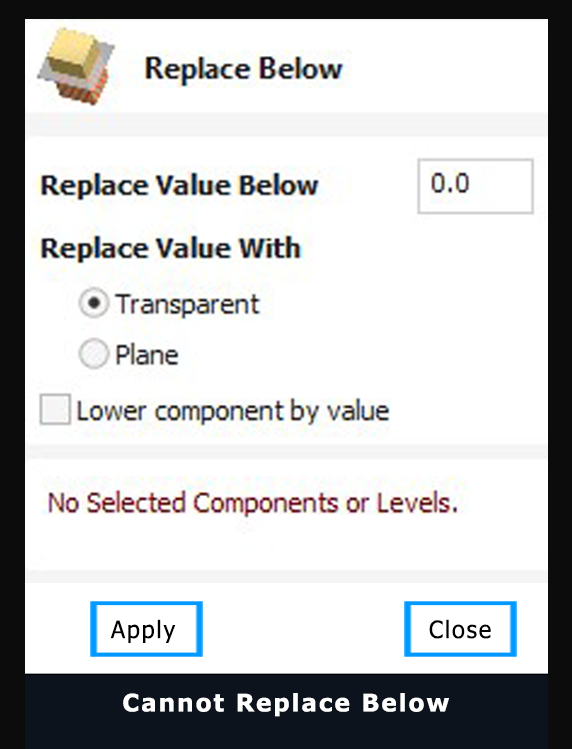
The message “cannot replace below” typically appears when using the Replace Below tool in Vectric software (such as Aspire or VCarve Pro). This tool is designed to flatten or remove portions of a 3D component that fall below a specified height (Z-plane).
What the Error Means
This error indicates that the software cannot complete the requested 3D operation on the selected component(s). Common reasons include:
- Complex Geometry: The tool works best on simple surfaces, like removing a flat background from a 3D scan. Highly detailed or irregular shapes can cause the operation to fail.
- Multiple Components: If multiple components are selected, the software may struggle to merge them into a single model before applying the cut.
- Computational Limitations: Complex models may exceed processing capacity, preventing the creation of accurate cut boundaries.
How to Fix It
- Simplify the Model: Reduce the complexity of the 3D component before using Replace Below.
- Adjust Parameters: Try different heights or threshold values for the operation.
- Check Components: Apply the tool to individual components one at a time, or merge them properly if needed.
- Consult Documentation: Review the Vectric manual for additional guidance on the Replace Below tool.
- Contact Support: If problems persist, reach out to support@vectric.com for assistance.