Click on the button to watch a video on this issue
A downloadable PDF Troubleshooting Card
is available in the description of the video
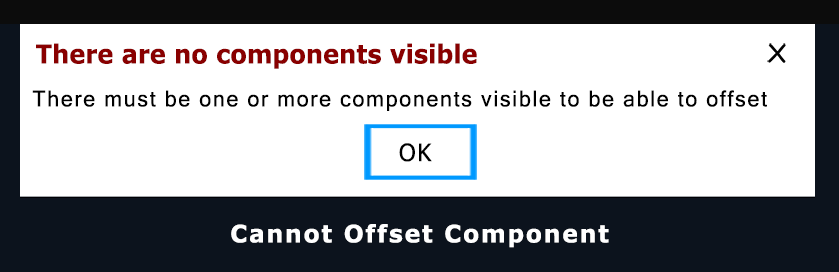
Cannot Offset Component
The “Cannot Offset Component” message occurs when Vectric cannot modify or create an offset of the selected 3D component. This typically happens when the component is read-only or locked, often seen with imported 3D models or clipart.
Common Causes and Solutions:
- Read-Only/Locked Component:
- Cause: A chain link icon next to the component in the Component Tree indicates it cannot be edited.
- Solution: Bake the component to make it permanent and editable. After baking, the offset operation should work.
- Complex or Invalid Geometry:
- Cause: Self-intersecting surfaces or internal errors prevent a valid offset.
- Solution: Check and simplify the model. For vectors, using the “rubber band boundary” option may help.
- Multiple Selections:
- Cause: The tool may require a single component selection.
- Solution: Ensure only the intended component is selected before offsetting.
Summary: The most common cause is a read-only component; baking it usually resolves the issue.