Click on the button to watch a video on this issue
A downloadable PDF Troubleshooting Card
is available in the description of the video
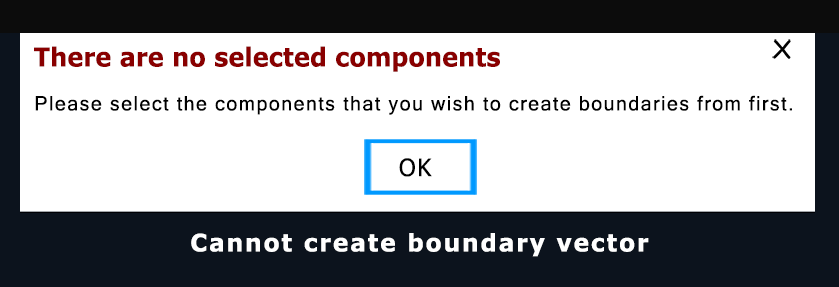
Cannot Create a Boundary Vector
The “Cannot Create a Boundary Vector” error occurs when Vectric cannot form a single, continuous, closed shape from selected design elements. This usually happens due to gaps, overlaps, intersections, or duplicate vectors. Boundary vectors are required for toolpath operations like profile cuts or pocketing, as the software needs a complete outline to calculate the cutting area.
Common Causes and Solutions:
- Open Vectors/Gaps: Gaps between start and end points.
- Solution: Use the Join Open Vectors tool or manually edit nodes to connect endpoints.
- Duplicate or Overlapping Vectors: Extra vectors prevent a clean boundary.
- Solution: Run Vector Validator to detect and remove duplicates or overlaps, or delete manually.
- Self-Intersecting Boundaries: Vectors cross over themselves.
- Solution: Edit nodes to remove intersections and create a simple, closed loop.
- Boundary Too Small for the Tool: Vector smaller than the cutting tool diameter.
- Solution: Use a smaller tool or offset the vector to enlarge the boundary.
- Vectors Outside Display/Material Area: Parts of vectors outside job boundaries.
- Solution: Zoom out to check visibility and adjust positions as needed.
Tip: Use the Vector Validator tool to quickly identify and fix errors in your design.