Click on the button to watch a video on this issue
A downloadable PDF Troubleshooting Card
is available in the description of the video
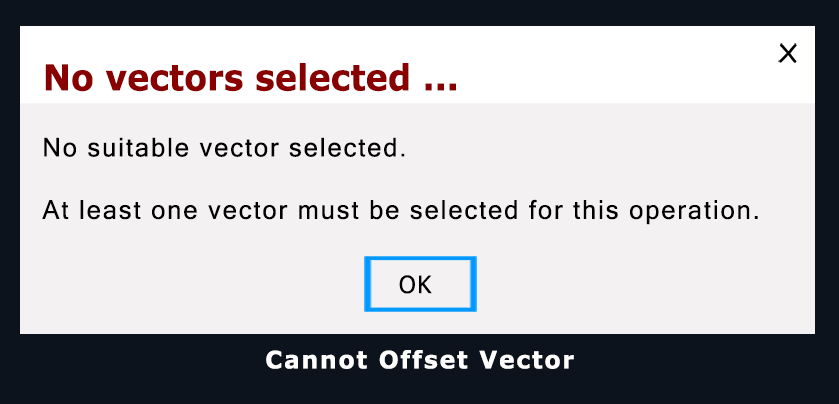
The message “Cannot offset vector” in Vectric software appears when the software cannot calculate a valid parallel path for the selected vector. This typically means the resulting offset geometry would be invalid, overlapping, or too complex to resolve.
Common Causes and Solutions
Sharp Curves or Small Radii
Very tight curves can prevent Vectric from creating a smooth, consistent offset.
Solution: Reduce the offset distance. If a larger offset is required, manually edit nodes after offsetting or redesign the affected area of the original vector.
Vector Errors (Duplicate or Overlapping Lines)
Imported or complex designs may contain hidden duplicate vectors or small overlaps that confuse the offset calculation.
Solution: Run the Vector Validator to locate and fix duplicates or overlaps. Use Node Edit mode to remove any unwanted or erroneous vectors.
Complex or Self-Intersecting Geometry
Highly intricate vectors or shapes that intersect themselves within the offset distance can cause the offset to cross over itself, resulting in an invalid shape.
Solution: Simplify the vector, remove self-intersections, or offset smaller sections individually and join them afterward.
Open Vectors
Although open vectors can be offset, issues can occur if the start/end nodes are unclear or too close to other vector segments.
Solution: Verify that open vectors have clearly defined start and end points and sufficient clearance from nearby geometry.
By inspecting the vector using Node Edit mode and the Vector Validator tool, you can usually identify and correct the issue preventing the offset operation.