Click on the button to watch a video on this issue
A downloadable PDF Troubleshooting Card
is available in the description of the video
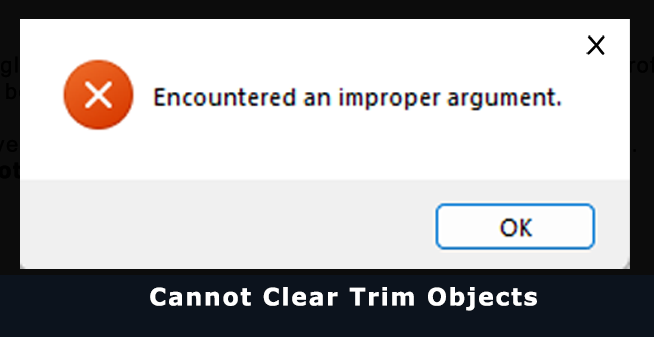
In Vectric software (VCarve or Aspire), the “cannot clear trim objects” error usually occurs when the software cannot complete a trimming operation due to issues with the selected vectors.
Common Causes:
- Complex or problematic vectors: Imported or created vectors that are messy or poorly constructed.
- Duplicate or overlapping vectors: Hidden lines stacked on top of each other.
- Open vectors: Lines that aren’t properly connected, preventing a closed boundary where one is required.
- Too many nodes: Excessive nodes or complex curves (common with traced bitmaps or DXF imports) can make trimming calculations difficult.
- Selection order issues: The trim operation may fail if the “object to be trimmed” and the “object to trim against” are selected in the wrong order.
- Software glitches: Rarely, temporary issues such as objects being far from the workspace origin (0,0) can interfere with trimming.
How to Fix:
- Inspect vectors in Node Editing mode: Press N to enter Node Edit and check for extra nodes, overlaps, or breaks. Use the Cut (C) tool to split or delete problematic points.
- Join/close vectors: Use Join/Close Vectors with Tolerance to ensure all endpoints are properly connected.
- Delete duplicates: Check for hidden duplicate vectors and remove them.
- Run Vector Validator: Automatically detects open vectors, overlaps, and intersections.
- Simplify curves: Use Fit Curves to Vectors to reduce unnecessary nodes and complexity.
- Check selection procedure: Make sure you are using the correct trim tool and selecting objects in the proper order.
By cleaning up the underlying vectors and ensuring proper selection, the software can successfully perform the trim operation.