Click on the button to watch a video on this issue
A downloadable PDF Troubleshooting Card
is available in the description of the video
Description
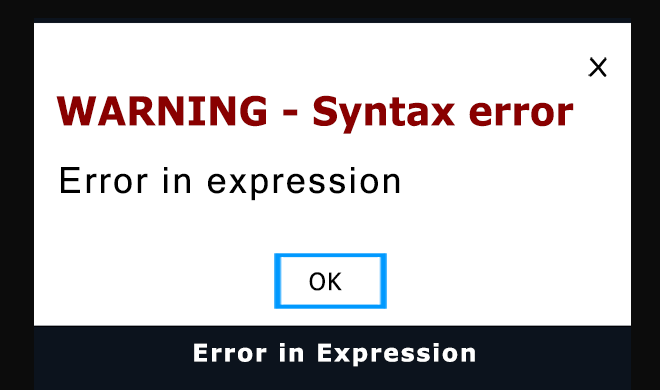
The “Error in Expression” message indicates that the software cannot interpret a value or formula you’ve entered. This is a general syntax error—not unique to Vectric products—triggered when the input does not match the expected format for a calculation or parameter.
Common Causes in Vectric Software
- Invalid Numeric Entries
Using characters in a numeric field (e.g., typing “s4-f=” instead of a number). - Incorrect Formulas
Misspelled functions, invalid operators, or unsupported calculation formats. - Wrong Data Types
Entering a decimal where a whole number is required, or vice versa. - Missing/Corrupted Values
The software attempts to compute using a null, missing, or damaged value. - Overly Complex Expressions
Formulas with excessive nesting or structures that exceed what the parser can interpret. - Vector Issues
Open or unjoined vectors can sometimes lead to calculation errors during toolpath setup.
How to Fix It
- Identify the Source
Review the field or parameter highlighted by the error message. - Check Data Formatting
Remove extra characters (units, spaces, symbols) and verify correct number formatting. - Simplify Your Formula
Break complex expressions into smaller steps to pinpoint the issue. - Verify Data Types
Ensure the input matches what the field expects (integer, decimal, etc.). - Validate Vectors
Use Vector Validator to find and repair open, overlapping, or unjoined vectors. - Restart the Software
Clear temporary issues by closing and reopening VCarve, Aspire, or Cut2D.
If the error continues, consult the official Vectric documentation or contact Vectric Support for deeper assistance. (support@vectric.com)