Click on the button to watch a video on this issue
A downloadable PDF Troubleshooting Card
is available in the description of the video
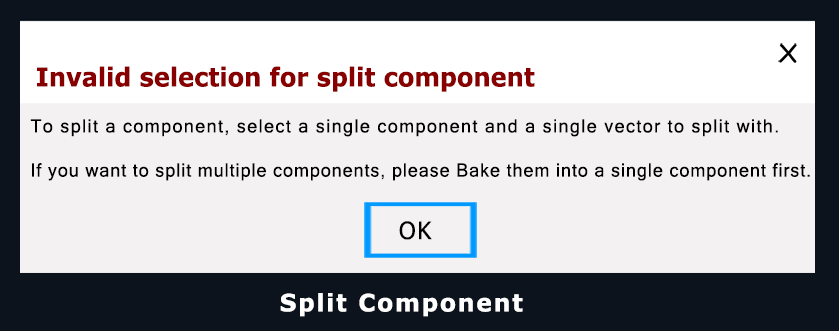
“Cannot Split Component” Error in Vectric Software
The “cannot split component” message appears when the requirements for the Split Component tool are not met. Common causes include:
- Multiple components selected: The tool works on a single component at a time.
- No vector selected: A single 2D vector is required to define the split boundary.
- Incorrect vector selection: Only one open or closed vector should be selected for the cut.
- Component not baked: Complex groups or combined components may need to be “baked” into a single component before splitting.
How to Fix It
- Select the single 3D component in the 3D view or Component Tree.
- Hold Shift and select one 2D vector to define the split boundary.
- Run the Split Component tool.
- If part of a group, ungroup or use Bake to create a single, editable component.