Click on the button to watch a video on this issue
A downloadable PDF Troubleshooting Card
is available in the description of the video
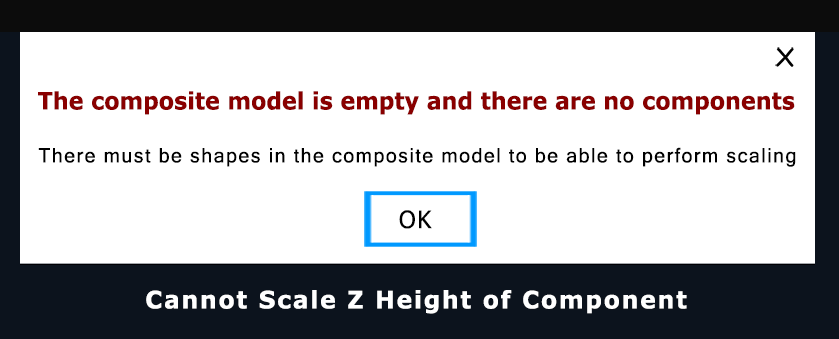
Vectric Error: “Cannot Scale Z Height of Component”
What It Means
This error occurs when a 3D component’s requested Z-height (thickness) exceeds material limits or other job/modeling constraints.
Common Causes
- Exceeding Material Thickness: Desired height is greater than the job’s material thickness.
- Zero or Negative Height: Attempting a Z-height of 0 or below.
- Modeling Constraints: Base Z position or interactions with other components limit the height.
- Locked Proportions (Auto Scale Z): Scaling X/Y proportionally adjusts Z; if this exceeds material limits, the error occurs.
How to Fix It
- Adjust Component Properties:
- Open Component Properties.
- Set an appropriate Shape Height or uncheck Auto Scale Z to scale X/Y independently.
- Modify Material Thickness:
- Open Job Setup → increase material thickness to accommodate the component.
- Recalculate toolpaths if prompted.
- Use Global Scaling:
- Use Scale Model Height to proportionally scale all components to fit the material.
Tip: Ensure Z-height changes stay within material and job constraints to prevent this error.