Click on the button to watch a video on this issue
A downloadable PDF Troubleshooting Card
is available in the description of the video
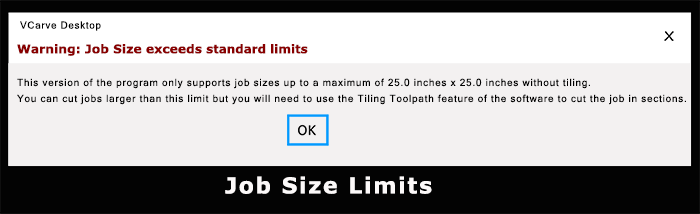
In Vectric software, the error “Job size exceeds standard limits” occurs when the dimensions of your project exceed the maximum size the software can handle for that particular job type.
This is typically related to the material or the machine limits defined within the software.
Here’s a breakdown:
What It Means
- Vectric sets default maximum job sizes depending on the product (e.g., VCarve Desktop, Aspire).
- If your job exceeds these limits in X (width), Y (height), or Z (thickness), the software cannot process it properly, and this error appears.
- The issue is not usually a problem with your computer, but rather with the software’s safety and operational limits.
Common Causes
- Oversized design: Your vectors extend beyond the maximum allowed dimensions.
- Incorrect material setup: The material size defined in the job setup exceeds what the software allows.
- Imported files: Imported DXF, SVG, or other vector files may have extreme coordinates that push the job size beyond limits.
- Scaling errors: Accidental scaling can make a design much larger than intended.
Solutions
Some Vectric products have higher limits in premium versions (e.g., Aspire vs. VCarve Desktop).
Check Job Setup
Go to Job Setup and verify the material size. Reduce the X, Y, or Z dimensions to fit within allowed limits.
Scale the Design
Use the Scale Tool to reduce the overall size of your design so it fits within the standard limits.
Split the Job
If the project is genuinely large, consider breaking it into smaller sections and machining each separately.
Check Imported Vectors
Use Select All and Fit to Material to ensure no stray vectors are extending far outside the material boundary.
Upgrade Software (Optional)
Tips:
Use the zoom extents tool to identify stray vectors outside the intended material area.
Always double-check material size before importing external files.