Click on the button to watch a video on this issue
A downloadable PDF Troubleshooting Card
is available in the description of the video
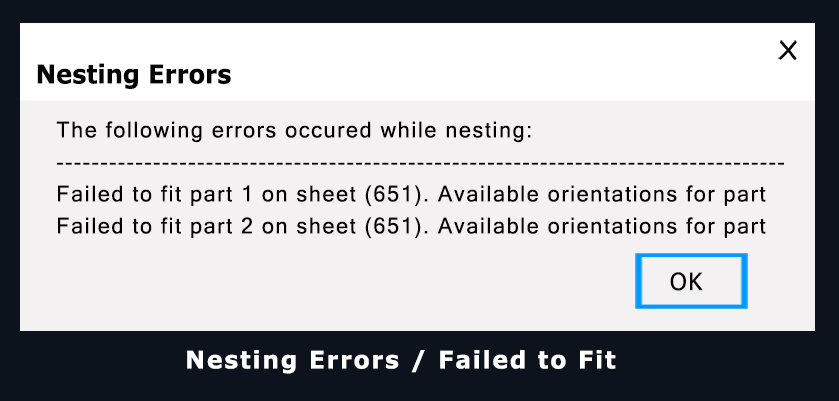
The message “Parts failed to fit while nesting” in Vectric software (VCarve, Aspire, Cut2D Pro) indicates that the software was unable to place all selected parts onto the available sheet material using the current nesting settings.
This typically occurs when one or more of the following conditions exist:
- One or more parts are larger than the defined sheet size or the remaining usable area.
- Vector issues are present, such as open vectors, duplicate vectors, or invalid geometry.
- Tool diameter or clearance values are too large, leaving insufficient space between parts or between parts and the sheet edge.
- Rotation angle settings are too restrictive, limiting the software’s ability to rotate parts for an optimal fit.
- Nesting boundaries or trim margins reduce the usable area to the point where parts cannot be placed.
Resolution
- Use the Vector Validator to locate and repair open vectors, overlaps, or other geometry errors.
- Increase the sheet size or allow nesting across multiple sheets.
- Reduce tool diameter or clearance settings where appropriate.
- Enable or widen the Rotation Step Angle to give the nesting algorithm more flexibility.
- Review trim values in the Process Material Library, as excessive trims reduce usable nesting space.
- If only a specific number of parts are required, add a filler part to occupy unused space and prevent nesting failure.